
Field guides / On your phone
How to put sunset and golden hour on your iPhone Lock Screen
Install an app that provides a Lock Screen widget, touch and hold your Lock Screen, choose Customize, select the Lock Screen and tap Add Widgets. Pick the app’s sunset or light-phase widget, then confirm its location in the app.
Check today’s golden-hour timesAdd the widget in five steps
- Install and open an app that supports the widget you want. Finish any initial location setup.
- Touch and hold the Lock Screen until the customization controls appear. Unlock the phone if it asks.
- Tap Customize, then choose the Lock Screen.
- Tap Add Widgets below the time. Choose the app, then tap or drag an available widget into the space.
- Close the widget picker and tap Done. Open the app once more to check the location and displayed time.
These steps follow Apple’s Lock Screen instructions. The exact choices depend on your iOS version and the widgets the installed app provides. If the app is absent from the picker, check its supported widgets and current version first.
Which app should provide it?
Alpenglow publishes Lock Screen widget support among its Pro features. Lumy describes widgets and Live Activities for following light through the day. Check each app’s current listing for device requirements and included features before paying.
Sol’s iPhone app is coming soon. You cannot install a public Sol Lock Screen widget from this website today. You can use Sol’s free web calculator now, or visit the app page to see the preview and join the launch list. The image on this page is an app preview, not a screenshot of an installed widget.
A widget, an alert and a Live Activity do different jobs
A widget is a small piece of information you can glance at. An alert is a notification you ask the app to send. A Live Activity is an ongoing status display that an app can provide for a particular event or period. Adding a widget does not automatically turn on a sunset reminder.
If you want a nudge before the light changes, look separately for the app’s notification settings and allow notifications when appropriate. If you only want the time visible without an alert, a widget may be enough.
If the time looks wrong
First check the place. A saved city and your current location may have different sunset times. Then check that the app is showing today’s date and the expected local time zone. Open the app to let it refresh; a widget is not a continuously running clock.
Finally, check what the number means. Sunset, civil dusk, blue hour and the start of golden hour are separate moments. Compare the same event in two tools, using the same date and location. Sol’s civil-twilight explanation shows why some usable light can remain after the sun has set.
Put it to use
The light at your place.
Start with the free web tool, using your own place and date.
Check today’s golden-hour timesComing soon for iPhone
Carry the light with you.
Sol brings the day’s light, the sun’s path and the moon to your phone. See the app preview or leave an email to hear when it ships.
See Sol for iPhone →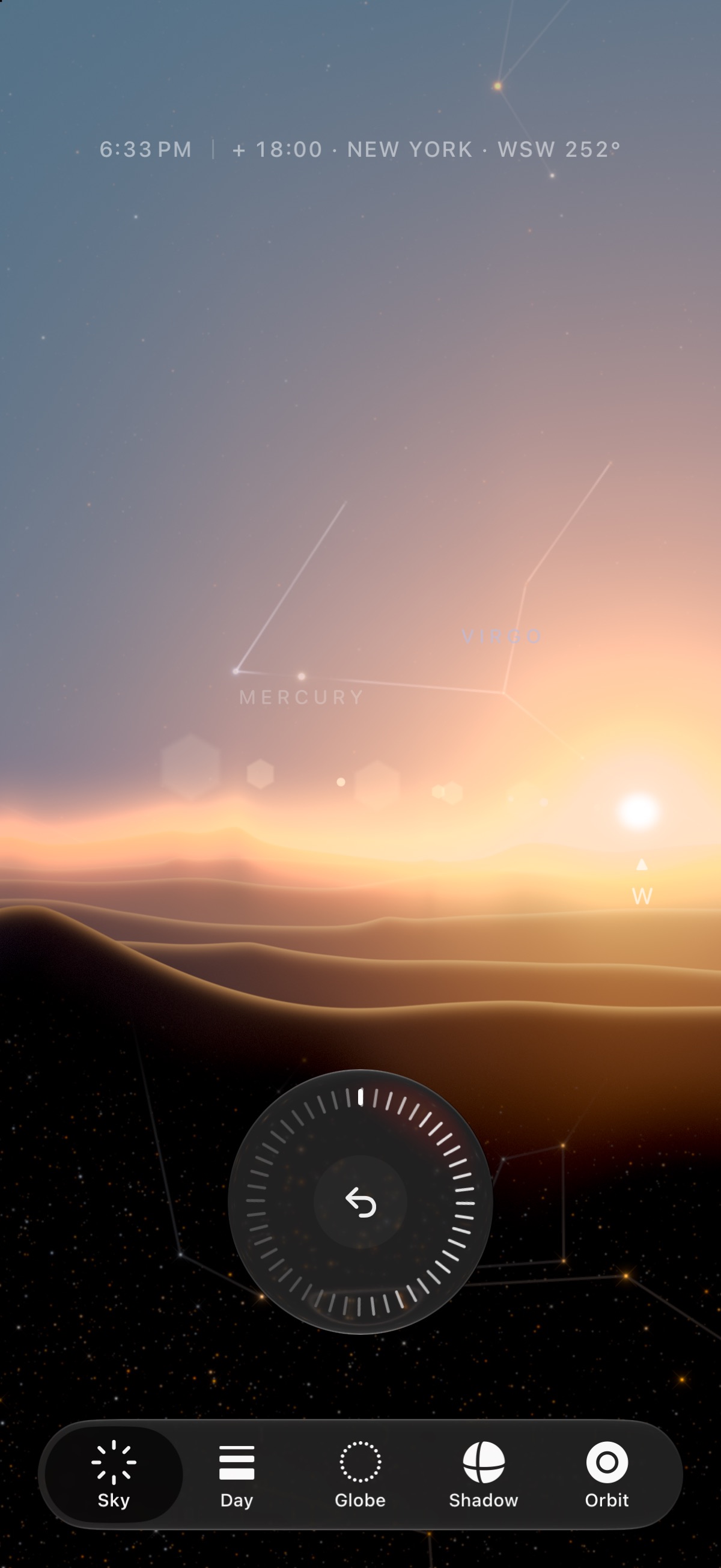
Sources & review
Checked on 26 September 2026. App features can change; use the official listing to confirm availability. Sol’s tools explain their calculations and limits.